Installing the Browser Extension and Desktop Apps
How to Use Bitwarden Apps with mypassword.care
The beauty of Vaultwarden is that you don’t need a separate app or tool to use it. All official Bitwarden apps are compatible — you just need to point them at the correct server.
Notably, you only need to install Bitwarden where you will use it most frequently. For example, it is not strictly necessary to install both the Bitwarden app (for Windows or Mac) and the browser extension. You can install both and they will stay synchronized with each other, however, so it is up to your personal preference and use case on what to install.
Installing the Browser Extension
The mypassword.care service is fully compatible with the official Bitwarden browser extension. Installing the extension allows you to autofill logins, generate passwords, and manage your vault directly from your browser.
You can install the Bitwarden extension on all major browsers, including Chrome, Firefox, and Safari.
Google Chrome
-
Open the Bitwarden Chrome Extension page in the Chrome Web Store.
-
Click Add to Chrome.
-
Click Add extension when prompted.
-
Once installed, click the Bitwarden icon in your toolbar to open the extension.
- Follow instructions in "Set the Server URL" below
Mozilla Firefox
-
Open the Bitwarden Firefox Add-on page.
-
Click Add to Firefox.
-
When prompted, click Add and then OK to confirm installation.
-
The Bitwarden icon will now appear in your toolbar.
- Follow instructions in "Set the Server URL" below
Apple Safari (macOS)
-
Open the Mac App Store on your Mac.
-
Search for Bitwarden.
-
Install the Bitwarden app from the App Store.
-
After installation, open Safari, then go to Safari > Settings > Extensions.
-
Enable the Bitwarden extension from the list.
- Once installed, click the Bitwarden icon in your toolbar to open the extension.
- Follow instructions in "Set the Server URL" below
Installing the Apps
Windows
- Open the Windows Store
- Search for Bitwarden
- Click "Get"
- When the installation is finished, click "Open"
- Follow instructions in "Set the Server URL" below
Mac
Follow the instructions above for installing in Safari.
Android/iOS
-
Open the Google Play Store on Android or the App Store on iOS.
-
Search for Bitwarden
- Android: Direct Link
- iOS: Direct Link
-
Tap Install.
-
Once installed, open the app.
-
Tap the Settings gear on the login screen.
- Follow instructions in "Set the Server URL" below
Set the Server URL
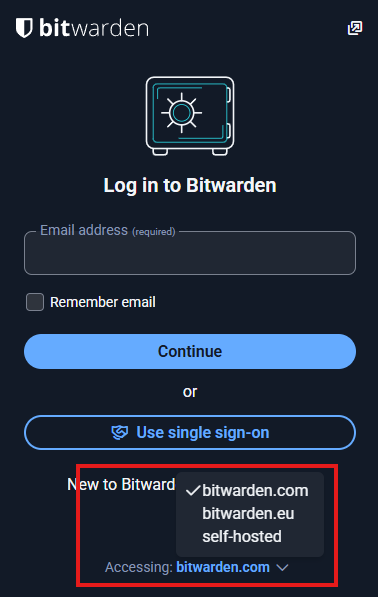
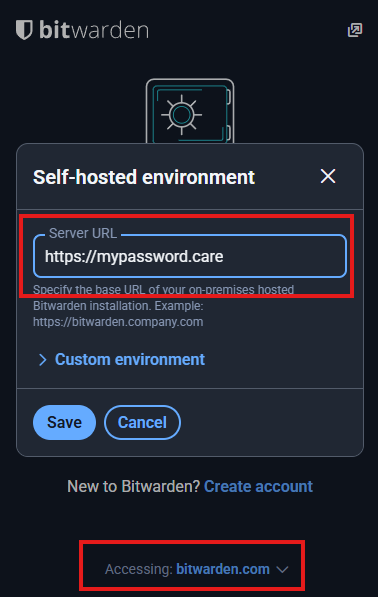
When logging into the Bitwarden app (on any platform), you’ll see an option to change the Server URL.
-
Set the Server URL to: https://mypassword.care
- The option may be listed as "Accessing: bitwarden.com" as a dropdown menu - click here and change to "self-hosted".
-
Tap or click Save.
-
Now return to the login screen and sign in with your mypassword.care credentials.
|
|
|