
Organizing your vault - Folders
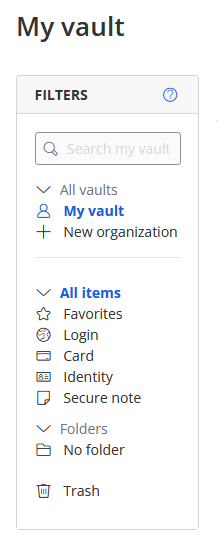
With just a few passwords in your vault, it may not be worth organizing your secure items into a folder structure. But as you add more logins you may find the need to do so. You can use Folders to organize your vault the same way you would organize files on a computer.
|
|
By default, you will not have any folders in your vault. Any saved items in your vault that are not in a folder will be available in the "No folder" entry.
Folders can be used to make sense of a complicated set of stored credentials and items. Your entire vault is searchable using keywords, however, so using a folder structure is not strictly necessary even when you have lots of passwords. It's more of a personal preference.
Keep in mind that your folder structure is personal and unique to you. You cannot use folders as a means to structure shared access with other users. To do this, you will need to create an Organization first and use Collections. |
Create a folder
Creating a folder is a simple process that varies according to how you're accessing your vault.
On the web
Create a folder on the web
When you're logged into mypassword.care, from your Vault window select New -> Folder:
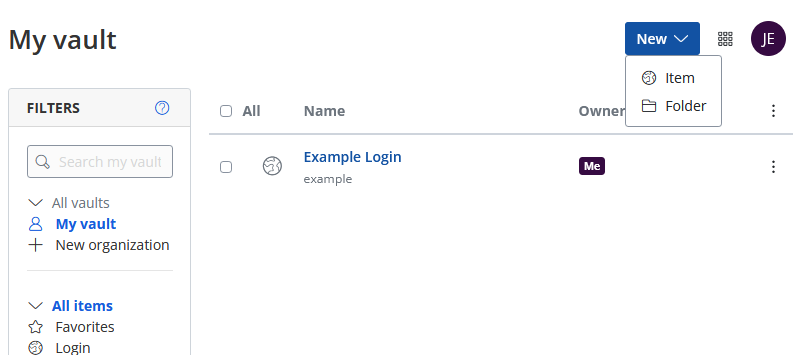
Name the folder and click "Save". You will then see your new folder in the list of available folders on the left.
Create a subfolder
It is possible to create subfolders on the web, but the process is counterintuitive.
- Begin by creating the parent folder, if it doesn't already exist.
- Then, click New -> Folder. Type the parent folder name, followed by a forward slash (
/), and finish with the name of the subfolder.-
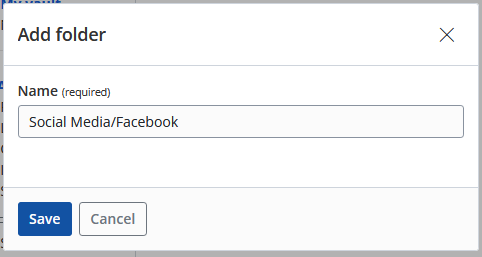
- In the above picture, the parent folder is "Social Media" and the subfolder is "Facebook".
-
- Click Save
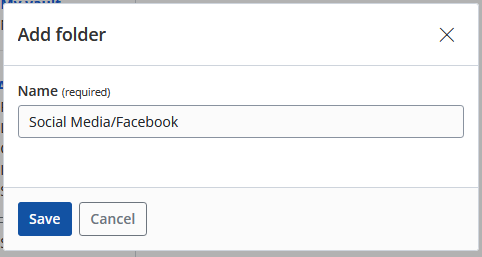
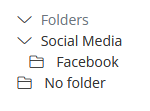
When done correctly, you will see the nesting structure of your folders:
Browser extension
Create a folder in the browser extension
To create a folder in the browser extension:
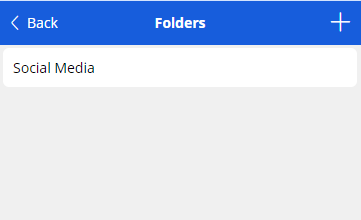
- Open the browser extension and go to Settings -> Vault -> Folders
- Click the "+" icon in the top right
- Name the folder and click "Save"
Create a subfolder
It is possible to create subfolders in the extension, but the process is counterintuitive.
- Begin by creating the parent folder, if it doesn't already exist.
- Then, in Settings -> Vault -> Folders, click the "+" button. Type the parent folder name, followed by a forward slash (
/), and finish with the name of the subfolder.-
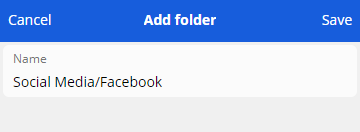
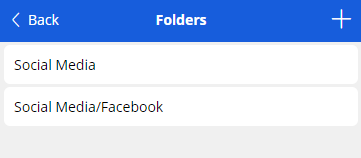
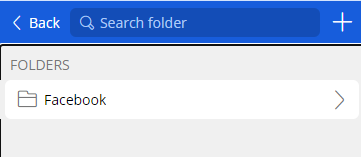
- In the above picture, the parent folder is "Social Media" and the subfolder is "Facebook".
-
- Click Save
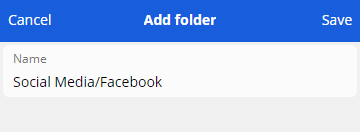
When done correctly, the folders screen will look like this:
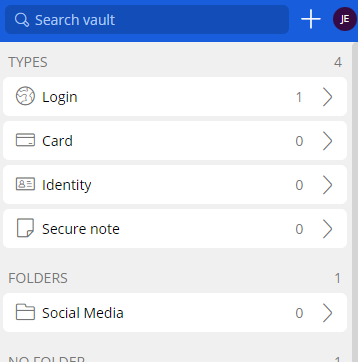
And back on the main tab of the extension you will see your parent folder:
Inside of the parent folder you will find your newly created subfolder:
Mobile app
Create a folder on the mobile app
Adding folders and subfolders on the mobile app is identical to the process of doing so on the browser extension, except the "+" button is in the bottom right instead of the top right. Otherwise, the two methods are identical.
For instructions, expand the "Browser extension" section above and follow along there.
Desktop app
Create a folder on the desktop app
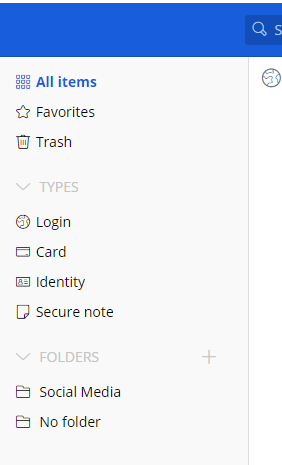
- On the desktop app, click the "+" button next to the "Folders" header on the left:
-
- Name the folder and click Save
Create a subfolder
It is possible to create subfolders in the desktop app, but the process is counterintuitive.
- Begin by creating the parent folder, if it doesn't already exist.
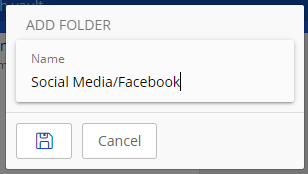
- Then, next to the Folders header, click the "+" button. Type the parent folder name, followed by a forward slash (
/), and finish with the name of the subfolder.-
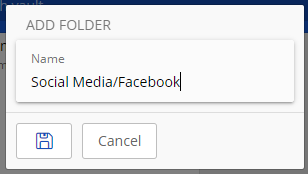
- In the above picture, the parent folder is "Social Media" and the subfolder is "Facebook".
-
- Click Save
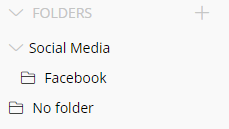
When done correctly, the folders list will look like this:
d