
Enable Two Factor Authentication (2FA)
By default, your vault is secured only with your master password. For an extra layer of security, you can optionally enable two factor authentication (or "two-step login" or 2FA). This combines the security of your password ("something you know") with the added layer of a security code ("something you have").
To enable 2FA, login to your vault at https://mypassword.care and go to Settings -> Security -> Two-step login:
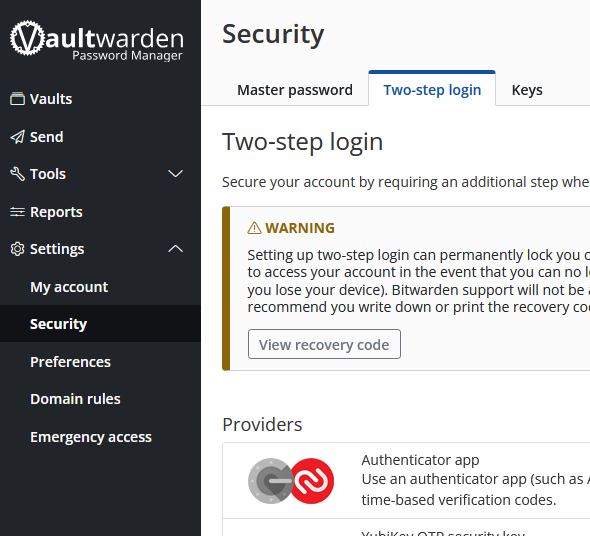 Choose a provider
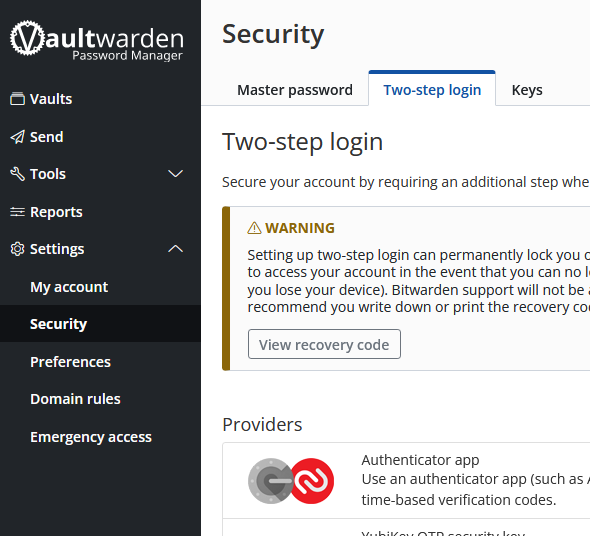
Start by choosing a provider.
- Authenticator app (suggested): You have probably used one before. This is most commonly an app on your phone that displays a number that updates every 30 or 60 seconds. Common choices are Authy, Google Authenticator, and Microsoft Authenticator - all of which are cross platform (iOS and Android). The setup screen in the next section will provide links to download an authenticator app if you don't already have one.
- Pros: Convenient, on your phone so it's (usually) always available
- Cons: You can lose access if you don't transfer the app settings when you get a new phone
- YubiKey OTP Security key: A physical device (USB or NFC) that acts as your second factor of authentication. Not currently supported.
- Duo: Very similar to the Authenticator app, but it's a paid, cloud-based service.
- Pros: As convenient as an authenticator app with the added convenience of cloud synchronization so you can login even if you lose your device
- Cons: Requires a separate account, paid subscription.
- FIDO2 WebAuthn: A similar option to the YubiKey, this requires a separate physical security device to function and is not available on all platforms (notably phones). Not currently supported.
- Pros: Standardized security key
- Cons: Not accessible on all platforms (notably phones)
- Email: Standard email verification
- Pros: You probably already have your email on your phone
- Cons: The easiest method to become compromised, since email can typically be accessed from the web anywhere in the world
Set up the 2FA provider
Authenticator app
- In the list of providers, click "Authenticator app"
- Enter your master password
- Follow the instructions on the setup screen. If you already have an authenticator app on your phone, you can proceed to use that app. If not, choose an option that matches your phone and download the app
- We recommend Authy, Google Authenticator, or Microsoft Authenticator. All of these are available from your phone's app store
- In your authenticator app, add a new account
- If prompted, allow access to your phone's camera "this time only"
- Scan the QR code provided to you on the two-step login page
- Save the new account, giving it a meaningful name such as "Vaultwarden 2FA"
- Your app will begin showing you a 6-digit code for the newly added account. Enter this code into step 3 on the two-step login page and click "Turn on"
YubiKey OTP security key
Not currently supported
Duo
Requirements: An existing Duo account
- In the list of providers, click "Duo"
- Enter your master password
- Login to your Duo account
- Navigate to Applications
- Click Protect an Application
- Find Bitwarden in the list
- Enter the Client ID, Client Secret, and API Hostname from Duo into the two-step login page in your vault
- Click "Turn on"
FIDO2 WebAuthn
Not currently supported
- In the list of providers, click "Email"
- Enter your master password
- On the two-step login screen, your login email will be prefilled. If you wish to use a different email for 2FA, you can change the email address here
- Click "Send Email"
- You will receive an email from Vaultwarden (no-reply@mypassword.care) with a 6-digit code. Enter this code into step 2 on the two-step login page
- Click "Turn on"
View and backup your recovery code
Once you have enabled at least one form of 2FA, you can view your recovery code. This code can be used in place of your chosen 2FA method(s) in the event that you have lost access to them. We recommend storing this recovery code in the same place you've securely stored the physical copy of your master password as outlined in Store your master password securely.